
Key Takeaways
Setting up IPTV on Firestick is usually straightforward, but a smooth experience depends on the service, player, connection, and source of your playlist.
- IPTV delivers live and on-demand video through your internet connection.
- Use a licensed service and a player that supports your Firestick model.
- Check your Wi-Fi, available storage, and Firestick software before installing anything.
- Treat unofficial APK files, unexplained permissions, and suspicious payment requests as warning signs.
- Keep your login details private and troubleshoot one variable at a time.
Understand how IPTV works on Firestick
IPTV on Firestick means watching television and on-demand video through an internet connection rather than a traditional cable or satellite signal. Your subscription normally supplies the content source, while a separate player displays the playlist or portal. Once you understand that separation, setup becomes less mysterious and troubleshooting gets easier.
IPTV services, players, and subscriptions
An IPTV service provides access details, such as an M3U playlist, portal address, or Xtream Codes login. The player is the app installed on your Firestick; it reads those details and organizes the available channels and programs. A subscription may also set limits on registered devices or simultaneous streams, so check those terms before sharing an account around your home.
For a Canadian household comparing options, a practical IPTV setup guide can help you think through device compatibility, internet requirements, and the basic installation sequence. The useful distinction is simple: the service supplies access, and the player supplies the viewing interface.
Supported video formats and streaming protocols
Most players rely on common streaming formats and protocols, including HLS streams and playlist files such as M3U. You do not normally need to understand the underlying code, but you should know that a player may support one source format better than another. If a playlist imports but channels fail to play, the issue can be with the stream format or the provider rather than the Firestick itself.
Look for a player that handles the source your service supplies and lets you adjust buffering, audio tracks, subtitles, and playback behavior. A broad IPTV player overview is useful when you want to compare features without assuming that every app works equally well with every playlist.
Firestick compatibility and performance limits
Firestick models differ in processing power, memory, wireless performance, and available storage. A newer device will generally feel more responsive when you browse large channel lists or switch between live video and on-demand content. Older hardware can still work, but you may need to keep the app simple and avoid running several demanding apps at once.
Video quality also affects performance. HD may be comfortable on a modest connection, while 4K needs more bandwidth and a stronger, steadier home network. If you are unsure which model you own, open the Fire TV settings and check the device information before choosing a player.
Legal and licensing considerations
IPTV technology itself is a delivery method, not a guarantee that every channel or stream is authorized. You are responsible for choosing a service that has the appropriate rights for the content it offers and for following the laws that apply where you live. Be cautious when a seller promises an unusually large catalog at an implausibly low price or refuses to explain its content rights.
You can also review a provider’s terms, privacy information, and copyright process before paying. For context, a copyright policy guide shows the kind of information a transparent service may publish, while a privacy policy guide illustrates why you should understand how account information is handled.
Choose a reliable IPTV service and player
The best setup is not necessarily the one with the longest channel list. Reliability means that the service, player, network, and support process work together consistently. Before you subscribe, test what you can, read the terms, and make sure the promised device support matches your household.
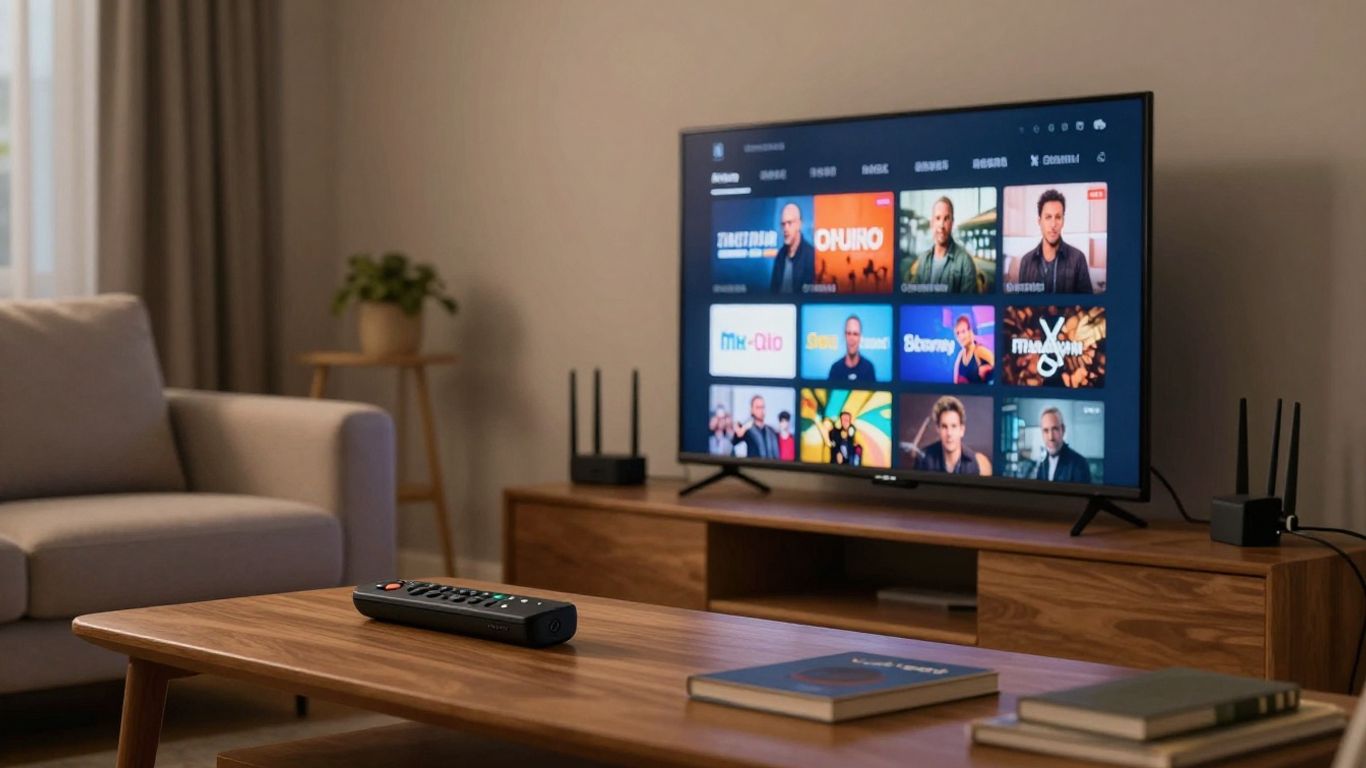
How to evaluate service reliability
Start with the basics: clear pricing, a stated refund policy, realistic device limits, and a way to contact support. Ask whether the plan covers one screen or several simultaneous streams, since a second registered device is not always the same as a second active stream. It is also sensible to test during the hours when your household normally watches television.
Best IPTV Canada describes access to Canadian, US, and international channels, live TV, sports, movies, and series, with HD and 4K options on common devices. Treat those details as the service description to verify against the plan you are considering, rather than assuming every package has identical terms.
Popular IPTV player features to compare
A player should make ordinary viewing easy. Compare its navigation, search, favorites, category organization, electronic program guide support, subtitle controls, and ability to resume playback. If you use more than one source, check whether it can keep playlists separate without making account management confusing.
The most useful features are often the least glamorous: quick channel changes, readable menus, stable playback, and settings that are easy to reset. Before installing an unfamiliar app, read its documentation and compare the requested permissions with what a television player actually needs.
Free versus paid IPTV apps
A free player can be perfectly adequate when it comes from a trustworthy source and supports your playlist format. Paid apps may offer a cleaner interface, additional organization tools, or fewer distractions, but payment does not automatically make an app safe or compatible. Your priority should be fit: source support, Firestick performance, privacy, and ease of use.
Do not confuse the cost of the player with the cost of the IPTV service. They are often separate decisions. A free app cannot make an unreliable source stable, and a premium player cannot fix a weak Wi-Fi connection.
Red flags that may indicate an unsafe service
Be wary of providers that ask you to download files from random file-sharing pages, request payment through unexplained channels, or promise every premium channel without discussing licensing. Another warning sign is a support process that asks for your Amazon password or remote access to your device. You should be able to cancel, understand the terms, and protect your personal information.
When researching setup advice, keep the source and topic aligned. A telehealth privacy guide, a realtor selection guide, a garden planning guide, a post-operative care guide, and wedding makeup advice may be useful in their own contexts, but none should be treated as evidence about IPTV apps or Firestick security. That kind of source discipline helps you avoid trusting unrelated pages simply because they appear in a search result.
Prepare your Firestick for IPTV
A few minutes of preparation can prevent many setup problems. Check the device, improve the connection, clear unnecessary clutter, and protect the account you will use to install and configure apps. These steps are simple, but they matter more than repeatedly reinstalling a player later.
Check your Firestick model and software
Open Settings, select My Fire TV, and review the device information and software version. Install available system updates before beginning, then restart the Firestick so the update and network settings settle properly. You should also confirm that the remote responds reliably and that the television has the correct HDMI input selected.
If the player you want lists a minimum operating system or hardware requirement, compare that requirement with your device. Do not assume that every app described as compatible with Fire TV will perform identically on every Firestick generation.
Improve Wi-Fi performance and connection stability
Place the Firestick where it has a clear wireless path to your router when possible. If the router supports both 2.4 GHz and 5 GHz networks, test the band that gives your particular room the steadier connection. A wired Ethernet adapter can also help when wireless interference is persistent.
Run a speed test on another device near the television, but remember that a good result at one moment does not guarantee stable streaming at night. Close large downloads, pause cloud backups, and avoid judging the service until your home network is behaving normally.
Manage storage and background apps
Firesticks have limited storage, and a crowded device can make installation and playback feel sluggish. Remove apps you no longer use, clear temporary cache where appropriate, and restart the device after a major cleanup. Leave enough free space for app updates rather than filling the storage completely.
A short preparation routine keeps the device manageable:
- Uninstall players and utilities you no longer use.
- Clear cache for apps that have become unusually slow.
- Restart the Firestick after updates or large changes.
- Keep only one or two players installed while testing.
This approach makes it easier to identify the cause of a problem. If playback improves after closing or removing an app, you have a useful clue instead of another unexplained variable.
Protect your account and device
Use a strong, unique password for your IPTV account and do not send it through public posts or shared chat groups. Never give an installer your Amazon credentials. If an app asks for permissions unrelated to playback, stop and investigate before continuing.
You should also keep your Firestick software and player current. A private home network, careful payment practices, and a clear record of where an APK came from are practical safeguards that cost little and reduce avoidable risk.
Install an IPTV player on Firestick
There are two broad installation paths: download an approved app from the Amazon Appstore or install an application package from another source. The first path is simpler and easier to verify. The second may be necessary for a player that is not listed in your region, but it requires more care because you are responsible for the source and file.
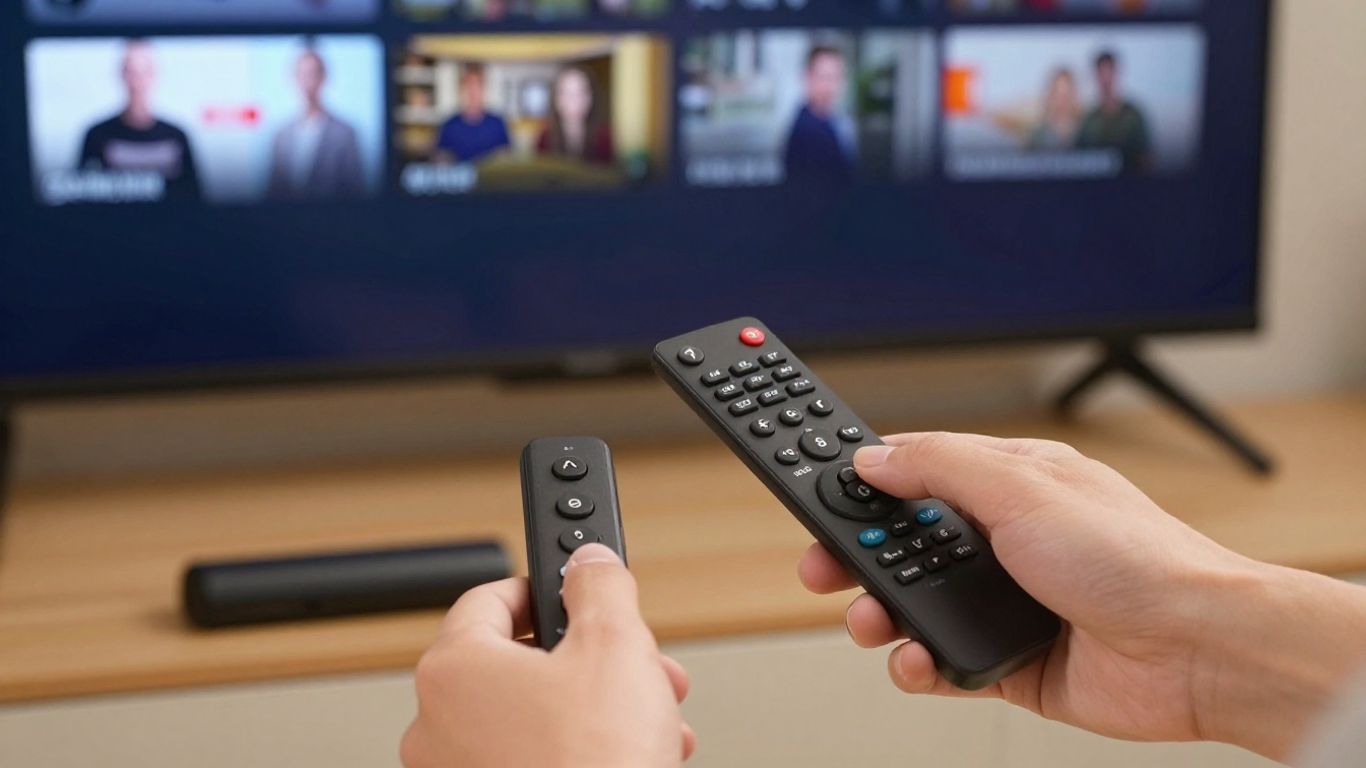
Finding approved apps in the Amazon Appstore
From the Firestick home screen, open the search function and enter the player name. Check the developer name, description, ratings, and update history before selecting Install. Once the app is installed, open it from your apps list and confirm that its menus work with the Firestick remote.
An Appstore listing is not a complete safety guarantee, but it gives you a clearer starting point than a random download page. If the app is unavailable, do not immediately choose the first APK result you see; compare the developer’s official documentation and support information first.
When sideloading may be necessary
Sideloading means installing an app package that is not delivered through the usual Appstore listing. It may be necessary when a legitimate player is unavailable in your region or when its developer distributes the app directly. The process changes over time, so use current Fire TV settings and instructions from the developer rather than copying an old shortcut blindly.
A current Firestick sideloading guide can help you understand the general process and common fixes. Download only from a source you can verify, and remember that sideloading does not make an IPTV service licensed or an APK trustworthy by itself.
Reviewing app permissions and developer sources
Before opening a downloaded file, confirm its source, file name, version, and intended device. Compare the download with the developer’s own instructions when available. A player may reasonably need network access, but a request for unrelated personal data deserves closer attention.
Do not install modified packages that promise extra channels, removed limits, or hidden features. Those changes can expose your account or device and make troubleshooting impossible. If the source is unclear, choose another player or stay with an approved listing.
Completing installation without exposing your device
After installation, open the app once and check that it launches normally before entering subscription credentials. If the player crashes immediately, uninstall it rather than repeatedly granting permissions or trying several unknown versions. Keep a note of the official source and version so you can update or remove it later.
Once the player is stable, configure the playlist in the next step. Do not enter login details into a similarly named app until you have confirmed the developer and the app’s permissions.
Configure IPTV on Firestick
Configuration depends on what your service supplies. You may receive an M3U playlist URL, a portal URL, Xtream Codes credentials, or instructions for a particular player. Copy those details carefully, avoid adding spaces, and keep the message containing your credentials private.
Adding an M3U playlist or portal URL
Open the player’s section for playlists or external sources and choose the option that matches your information. Paste the complete M3U or portal URL, give the playlist a recognizable name, and save it. If the player asks whether to refresh or import the guide, allow the process to finish before navigating away.
A failed import often comes from a truncated URL, an extra character, or an expired subscription. Copy the address again from the original message rather than typing it manually. If the service uses a portal address, do not substitute it for an M3U link unless the provider’s instructions say to do so.
Entering Xtream Codes credentials
Xtream Codes-style setup usually asks for a server address, username, and password in separate fields. Enter each value exactly as supplied, including the server protocol and port if one is shown. Avoid placing the full URL in the username field or adding quotation marks around the password.
If authentication fails, first check capitalization, punctuation, and the subscription’s active dates. A correct login can still fail when the account has reached its active-stream limit or when the server address is temporarily unavailable.
Organizing live channels, movies, and series
After the first sync, give the library time to load. Use favorites for channels you watch often, hide categories you never use, and keep live channels separate from movies and series when the player offers that option. A smaller, organized favorites list is easier to navigate with a remote than a huge unfiltered catalog.
For households with several viewers, agree on which devices will be registered and which streams may run at the same time. Best IPTV Canada explains why screen counts and simultaneous streams should be matched to the way your household actually watches.
Adjusting subtitles, audio, and playback settings
Set the preferred audio track and subtitle language before starting a long viewing session. If the player offers hardware decoding, test it with a few channels; a setting that helps one stream can cause problems with another. Keep buffer settings moderate and change only one playback option at a time.
Save your changes, play a channel for several minutes, and then test an on-demand title. This gives you a more useful check than opening a menu and assuming the configuration is complete.
Troubleshoot common IPTV problems
Most IPTV problems have a small number of likely causes: the connection, the service account, the playlist, the player, or the Firestick itself. Change one thing at a time and write down what happened. That habit prevents you from losing a working setting while trying to fix a different problem.
Fixing buffering and playback interruptions
First test another channel and another app. If every app buffers, restart the router and Firestick, move closer to the router, or test a wired connection. If only one source buffers, the issue may be that stream or server rather than your entire home network.
Lowering video quality can help when bandwidth is limited, but it will not repair a failing source. You can also pause other heavy network activity and confirm that the Firestick is not nearly out of storage. For data-conscious households, a streaming data usage guide offers a useful way to think about quality, device use, and monthly consumption.
Resolving login and playlist errors
Re-enter the server address, username, and password carefully, then confirm that the subscription is active. If the playlist previously worked, refresh it instead of creating several duplicate entries. A sudden login failure may indicate an expired account, a changed server address, a reached stream limit, or a provider outage.
Do not send your credentials to strangers offering a quick fix. Contact the service through its published support route and include the error message without revealing your password.
Handling missing channels or electronic program guide data
A missing channel may be unavailable in your plan, temporarily offline, renamed, or filtered by a category setting. Refresh the playlist, clear a stale guide, and check whether the channel appears under another group. Guide data can also update more slowly than the channel list, so give the player time to complete its sync.
If only one program lacks guide information, playback may still be working normally. Ask the provider whether the channel and guide feed are currently supported before changing players.
Updating, reinstalling, or replacing the player
Update the player when an official update is available, then restart the Firestick. If the problem began after an update, clear the app cache or reinstall from a verified source. Keep your playlist details available before uninstalling, since removing the app may erase locally saved settings.
Replace the player only after checking the service, connection, and credentials. A different interface can help, but changing apps will not solve an expired subscription or an unreliable stream source.
Conclusion
You can set up IPTV on Firestick safely by separating the service from the player, checking compatibility, protecting your credentials, and testing each part methodically. Choose a source with clear terms, install software from a trustworthy channel, and keep your home network and Firestick in good shape. That approach gives you a cleaner path to live TV, sports, movies, and series without turning a simple setup into an avoidable security problem.
Frequently Asked Questions
Is IPTV legal on Firestick?
The Firestick and IPTV technology are legal, but the service must have the appropriate rights for the content it distributes. Choose a provider that is transparent about licensing and follow the laws in your location.
Do I need a separate IPTV player?
Usually, yes. The IPTV service supplies access details, while a compatible player reads the playlist or portal and displays the content. Some services may recommend a particular app.
Can I use IPTV on an older Firestick?
Possibly, but older models may have less storage and processing capacity. Keep the device updated, use a lightweight player, and choose a video quality your connection and hardware can handle.
Why does IPTV keep buffering?
Buffering can result from weak Wi-Fi, network congestion, insufficient device resources, or an overloaded or unreliable stream source. Test another channel and app before deciding which component is at fault.
What is an M3U playlist?
An M3U playlist is a file or URL containing stream entries that an IPTV player can read. Your provider may give you an M3U URL instead of separate channel details.
What are Xtream Codes credentials?
They are commonly entered as a server address, username, and password. The exact fields and terminology vary by player, so follow the setup instructions supplied with your subscription.
Should you sideload an IPTV app?
Sideloading may be reasonable when a legitimate app is unavailable through the Amazon Appstore, but verify the developer and download source first. Avoid modified APKs, unexplained permissions, and files from random websites.
Pingback: How to choose the right android iptv player for smooth, secure streaming